안녕하세요.😁
이번에는 기분 전환(?)겸 평소 궁금하기도 하고 학습도 할 겸
Login 작업을 구현하기로 했습니다.
먼저 UI 작업부터 해주었습니다.
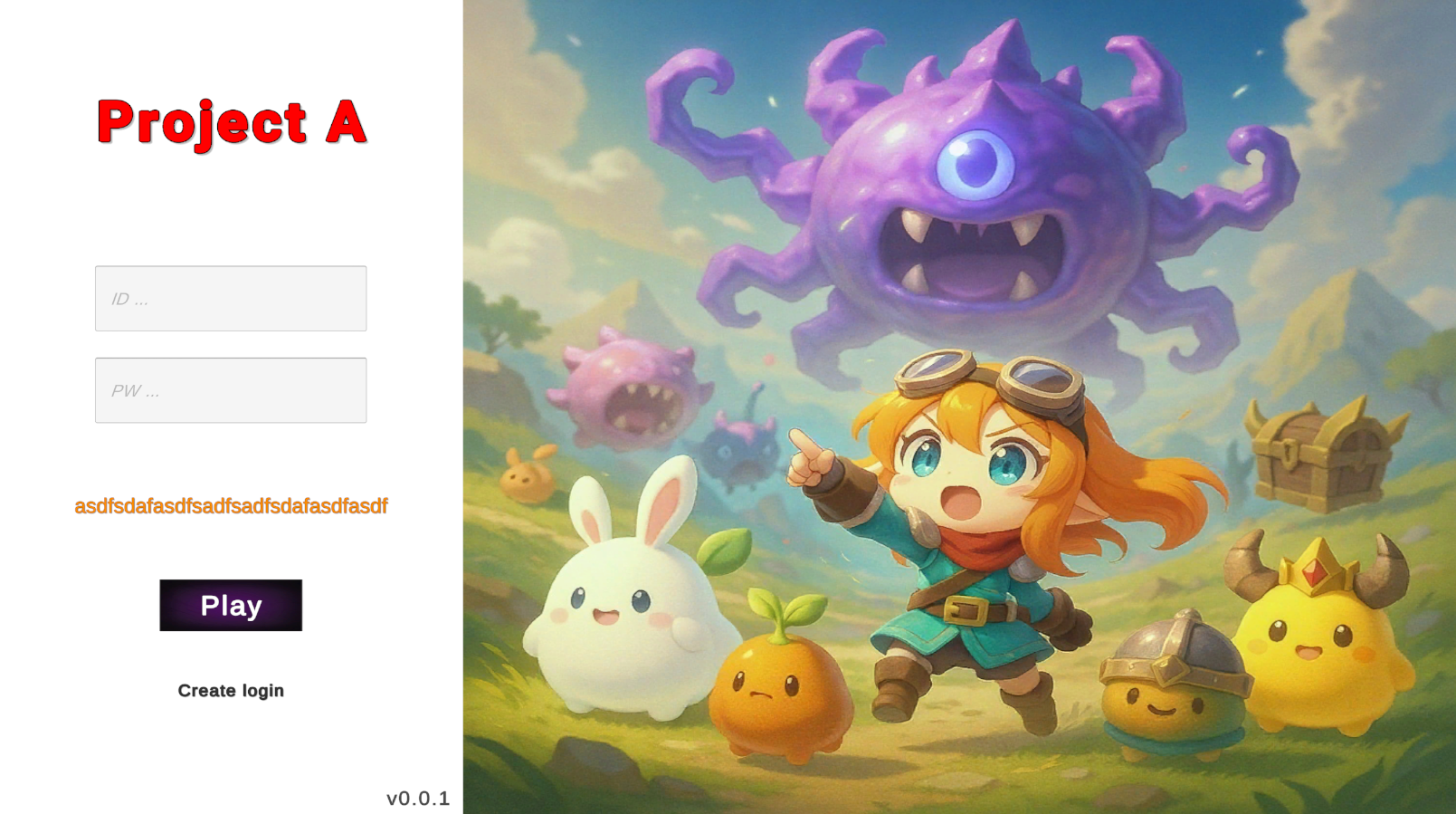
이미지는 LMArena를 활용하여 생성하였고
프롬프트는 Chat GPT를 활용하여 작성하였습니다.
로그인 구현은 Firebase로 해볼 생각입니다.
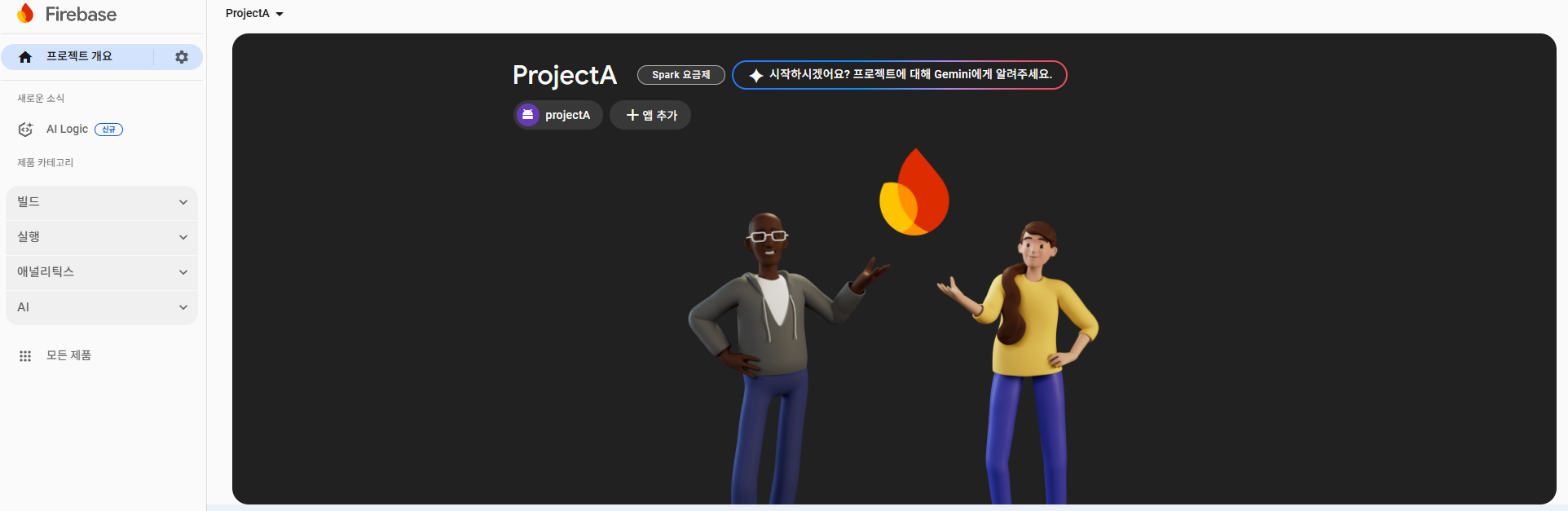
Firebase에 "projectA"라는 명으로 앱을 등록시켜 주어
기본 세팅을 완료했습니다.
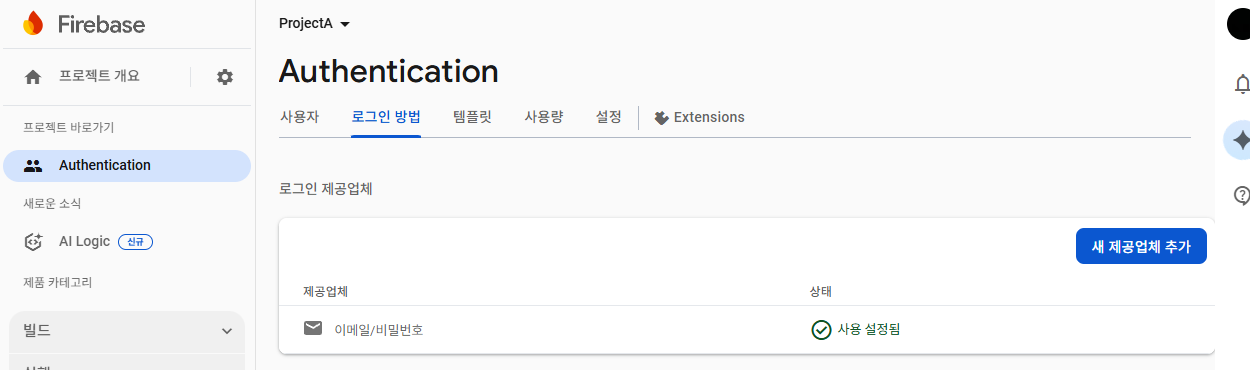
1. Unity에서 다운로드한 json 파일추가
2. Asset > import package > FirebaseAnalytics, Auth 추가
문제 1 : google-services.json 경로문제
원인 : google-services.json은 반드시 Assets/StreamingAssets 안에 있어야 함
결과 : Assets 폴더 하위에 StreamingAssets폴더 생성 후 google-services.json 이동
문제 2 : 타입 문제
원인 : FirebaseUser newUser = task.Result; 와 같은 코드는 AuthResult 타입을 반환
최신 Firebase SDK에서는 AuthResult.User를 꺼내야 FirebaseUser를 얻을 수 있음
결과 : Firebase.Auth.AuthResult result = task.Result;
FirebaseUser newUser = result.User;
AuthResult로 받고 해당 User 꺼내기
코드를 보면서 이어서 작성하도록 하겠습니다.
FirebaseAuthController 스크립트입니다.
1) Firebase 이메일/비밀번호 인증 처리
2) 결과에 따라 UI 패널을 전환하며 에러/안내 메시지 표시
3) Play 씬으로 전환
using UnityEngine;
using Firebase.Auth;
using TMPro;
using Firebase.Extensions;
using System.Collections;
using UnityEngine.UI;
using UnityEngine.SceneManagement;
public class FirebaseAuthController : MonoBehaviour
{
[Header("Firebase")]
private FirebaseAuth auth;
private FirebaseUser user;
[Header("Utility")]
private Coroutine hideCoroutine;
[Header("Input Fields")]
[SerializeField] private TMP_InputField input_id;
[SerializeField] private TMP_InputField input_pw;
[SerializeField] private Image img_id;
[SerializeField] private Image img_pw;
[Header("Messages")]
[SerializeField] private TextMeshProUGUI errorMessage;
[Header("UI Windows")]
[SerializeField] private GameObject loginObject;
[SerializeField] private GameObject playObject;
[SerializeField] private GameObject playLogingObject;
[SerializeField] private GameObject playBtnObject;
void Start()
{
auth = FirebaseAuth.DefaultInstance;
}
private void SetErrorMessage(string message, float duration = 2f)
{
if (errorMessage != null)
{
errorMessage.text = message;
errorMessage.gameObject.SetActive(true);
input_id.text = "";
input_pw.text = "";
img_id.color = new Color(1f, 0.847f, 0.847f);
img_pw.color = new Color(1f, 0.847f, 0.847f);
if (hideCoroutine != null)
{
StopCoroutine(hideCoroutine);
}
if (!string.IsNullOrEmpty(message))
{
hideCoroutine = StartCoroutine(HideErrorAfterSeconds(duration));
}
}
}
private IEnumerator HideErrorAfterSeconds(float seconds)
{
yield return new WaitForSeconds(seconds);
if (errorMessage != null)
{
errorMessage.gameObject.SetActive(false);
img_id.color = new Color(0.9622642f, 0.9622642f, 0.9622642f);
img_pw.color = new Color(0.9622642f, 0.9622642f, 0.9622642f);
}
hideCoroutine = null;
}
public void Create()
{
auth.CreateUserWithEmailAndPasswordAsync(input_id.text, input_pw.text)
.ContinueWithOnMainThread(task =>
{
if (task.IsCanceled)
{
Debug.Log("회원가입 취소");
return;
}
if (task.IsFaulted)
{
Debug.Log("회원가입 실패");
string message = "";
if (task.Exception != null)
{
foreach (var e in task.Exception.InnerExceptions)
{
message = e.Message;
}
}
SetErrorMessage(message);
return;
}
Firebase.Auth.AuthResult result = task.Result;
user = result.User;
Debug.Log("회원가입 완료: " + user.Email);
SetErrorMessage("Sign Up Complete!"); // 성공 시 메시지 지우기
});
}
private void LookPlayWindow()
{
loginObject.SetActive(false);
playObject.SetActive(true);
StartCoroutine(LookLogingObject());
}
private IEnumerator LookLogingObject()
{
yield return new WaitForSeconds(5.0f);
playLogingObject.SetActive(false);
playBtnObject.SetActive(true);
}
private void LookLoginWindow()
{
loginObject.SetActive(true);
playObject.SetActive(false);
playLogingObject.SetActive(true);
playBtnObject.SetActive(false);
}
public void Login()
{
auth.SignInWithEmailAndPasswordAsync(input_id.text, input_pw.text)
.ContinueWithOnMainThread(task =>
{
if (task.IsCanceled)
{
Debug.Log("로그인 취소");
return;
}
if (task.IsFaulted)
{
Debug.Log("로그인 실패");
string message = "";
if (task.Exception != null)
{
foreach (var e in task.Exception.InnerExceptions)
{
message = e.Message;
}
}
SetErrorMessage(message);
return;
}
Firebase.Auth.AuthResult result = task.Result;
user = result.User;
Debug.Log("로그인 성공: " + user.Email);
SetErrorMessage("Login Successful!");
LookPlayWindow();
});
}
public void Logout()
{
auth.SignOut();
user = null;
LookLoginWindow();
Debug.Log("로그아웃");
}
public void SceneChangeLoginToPlay()
{
SceneManager.LoadScene("Play");
}
}
1. 변수 선언부
[Header("Firebase")]
private FirebaseAuth auth;
private FirebaseUser user;
[Header("Utility")]
private Coroutine hideCoroutine;
[Header("Input Fields")]
[SerializeField] private TMP_InputField input_id;
[SerializeField] private TMP_InputField input_pw;
[SerializeField] private Image img_id;
[SerializeField] private Image img_pw;
[Header("Messages")]
[SerializeField] private TextMeshProUGUI errorMessage;
[Header("UI Windows")]
[SerializeField] private GameObject loginObject;
[SerializeField] private GameObject playObject;
[SerializeField] private GameObject playLogingObject;
[SerializeField] private GameObject playBtnObject;
auth : Firebase 인증을 다루는 핵심 인스턴스
user : 현재 로그인된 사용자 캐시
hideCorutine : 메시지를 일정 시간 뒤 자동으로 숨기는
코루틴을 중복 실행 없이 관리하기 위한 참조
input_id / input_pw : 이메일, 비밀번호 입력 필드
img_id / img_pw : 입력 필드 배경 이미지
errorMessage : 에러 / 안내 텍스트
liginObject : 로그인 패널
playObject : 플레이용 메인 패널
playLodingObject : 로그인 중 표기
playBtnObject : 실제 플레이 버튼이 있는 영역
2. Friebase 인증 인스턴스 준비
void Start()
{
auth = FirebaseAuth.DefaultInstance;
}
씬 시작 시 Firebase Auth를 초기화. 이후 모든 인증 작업은 이 인스턴스로 처리.
3. 메시지 표시 및 자동 숨김
private void SetErrorMessage(string message, float duration = 2f)
{
if (errorMessage != null)
{
errorMessage.text = message;
errorMessage.gameObject.SetActive(true);
input_id.text = "";
input_pw.text = "";
img_id.color = new Color(1f, 0.847f, 0.847f);
img_pw.color = new Color(1f, 0.847f, 0.847f);
if (hideCoroutine != null)
{
StopCoroutine(hideCoroutine);
}
if (!string.IsNullOrEmpty(message))
{
hideCoroutine = StartCoroutine(HideErrorAfterSeconds(duration));
}
}
}
실패 및 안내 메시지를 잠깐 보여주고 입력창을 하이라이트 하여 사용자가 바로 인지하도록 함
순서는 다음과 같습니다.
메시지 활성화 > 입력 초기화 > 색상 변경 > 기존 코루틴 정리 > 새 코루틴으로 일정 시간 후 자동 숨김
private IEnumerator HideErrorAfterSeconds(float seconds)
{
yield return new WaitForSeconds(seconds);
if (errorMessage != null)
{
errorMessage.gameObject.SetActive(false);
img_id.color = new Color(0.9622642f, 0.9622642f, 0.9622642f);
img_pw.color = new Color(0.9622642f, 0.9622642f, 0.9622642f);
}
hideCoroutine = null;
}
지정된 초 후 메시지 비활성화 및 이미지 색상 복구.
hideCoroutine = null 처리로 코루틴 상태를 정리하여 다음 호출을 대비.
4. 회원가입 (Create)
public void Create()
{
auth.CreateUserWithEmailAndPasswordAsync(input_id.text, input_pw.text)
.ContinueWithOnMainThread(task =>
{
if (task.IsCanceled)
{
Debug.Log("회원가입 취소");
return;
}
if (task.IsFaulted)
{
Debug.Log("회원가입 실패");
string message = "";
if (task.Exception != null)
{
foreach (var e in task.Exception.InnerExceptions)
{
message = e.Message;
}
}
SetErrorMessage(message);
return;
}
Firebase.Auth.AuthResult result = task.Result;
user = result.User;
Debug.Log("회원가입 완료: " + user.Email);
SetErrorMessage("Sign Up Complete!"); // 성공 시 메시지 지우기
});
}
이메일 / 비밀번호 기반 계정을 Firebase에 생성.
1) 비동기 호출 > 메인 스레드로 복귀( ContinueWithOnMainThread)
Unity에서는 UI를 메인 스레드에서만 수정할 수 있기에 찾아본 메서드입니다.
만일 백그라운드 스레드에서 UI를 사용하려고 하면 제 현상 같은 경우는 오류가 발생하진 않지만
UI가 업데이트 되지않는 현상이 있었습니다.
오류는 나지않고, Unity 인스펙터 상에도 적용이 잘 됐지만 게임 화면에서 보이지 않아
문제점을 바로 파악하기가 어려웠습니다.
2) 취소 / 실패 분기 처리 > 예외 메시지를 표시
3) 성공 시 user를 갱신하며 성공 메시지를 출력합니다.
5. UI 전환
private void LookPlayWindow()
{
loginObject.SetActive(false);
playObject.SetActive(true);
StartCoroutine(LookLogingObject());
}
로그인 성공 후 플레이 화면으로 전환될 때 호출되는 LookPlayWindw()
오브젝트 활성 / 비활성화와 함께 코루틴 실행
private IEnumerator LookLogingObject()
{
yield return new WaitForSeconds(5.0f);
playLogingObject.SetActive(false);
playBtnObject.SetActive(true);
}
일정 시간 대기후, Play 화면으로 전환할 수 있는 화면으로 전환
private void LookLoginWindow()
{
loginObject.SetActive(true);
playObject.SetActive(false);
playLogingObject.SetActive(true);
playBtnObject.SetActive(false);
}
로그아웃시 실행될 함수 LookLoginWindow()
Play로 갈 수 있는 화면에서 초기 상태인 Login 화면으로 전환하기 위함
6. 로그인 (Login)
public void Login()
{
auth.SignInWithEmailAndPasswordAsync(input_id.text, input_pw.text)
.ContinueWithOnMainThread(task =>
{
if (task.IsCanceled)
{
Debug.Log("로그인 취소");
return;
}
if (task.IsFaulted)
{
Debug.Log("로그인 실패");
string message = "";
if (task.Exception != null)
{
foreach (var e in task.Exception.InnerExceptions)
{
message = e.Message;
}
}
SetErrorMessage(message);
return;
}
Firebase.Auth.AuthResult result = task.Result;
user = result.User;
Debug.Log("로그인 성공: " + user.Email);
SetErrorMessage("Login Successful!");
LookPlayWindow();
});
}
auth.SignInWithEmailAndPasswordAsync(input_id.text, input_pw.text)
Firebase 서버에 이메일과 비밀번호로 로그인 요청을 보냄
. ContinueWithOnMainThread(task => {... });
UI 변경, 메시지 출력, 씬 전환 등을 메인 스레드에서 안전하게 실행
if (task.IsCanceled) { Debug.Log("로그인 취소"); return; }
어떤 이유로 취소되었을 때
if (task.IsFaulted)
이 부분 같은경우는
서버 오류, 네트워크 문제, 잘못된 비밀번호 등 일 때 true가 된다고 합니다.
SetErrorMessage(message);
실패 시에는 message를 띄우는 SetErrorMessage() 함수 실행
Firebase.Auth.AuthResult result = task.Result;
user = result.User;
Task 결과에서 User 정보를 가져옴
LookPlayWindow();
로그인 성공 후 플레이 패널로 전환
7. 로그아웃 (Logout)
public void Logout()
{
auth.SignOut();
user = null;
LookLoginWindow();
Debug.Log("로그아웃");
}
Firebase 인증 종료 : auth.SignOut();
유저 정보 초기화 : user = null;
UI 전환 : LookLoginWindow();
8. 씬 전환
public void SceneChangeLoginToPlay()
{
SceneManager.LoadScene("Play");
}
Unity의 씬 매니저를 통해 "Play" 신을 로드
( LookPlayWindow()에서 로딩이 끝난 후 플레이 버튼 클릭 시 호출 가능)
작업을 지속하면서 느낀 점은
지속적으로 테스트를 해보며
여러 가지 조건 상황에 대한
예외처리를 많이 해줘야 할 것 같다고 느꼈습니다.
그러고 보니 저 오른쪽의 이미지도 동적인 형태로 하면 어떨까? 하는 생각이 들고있긴 합니다.
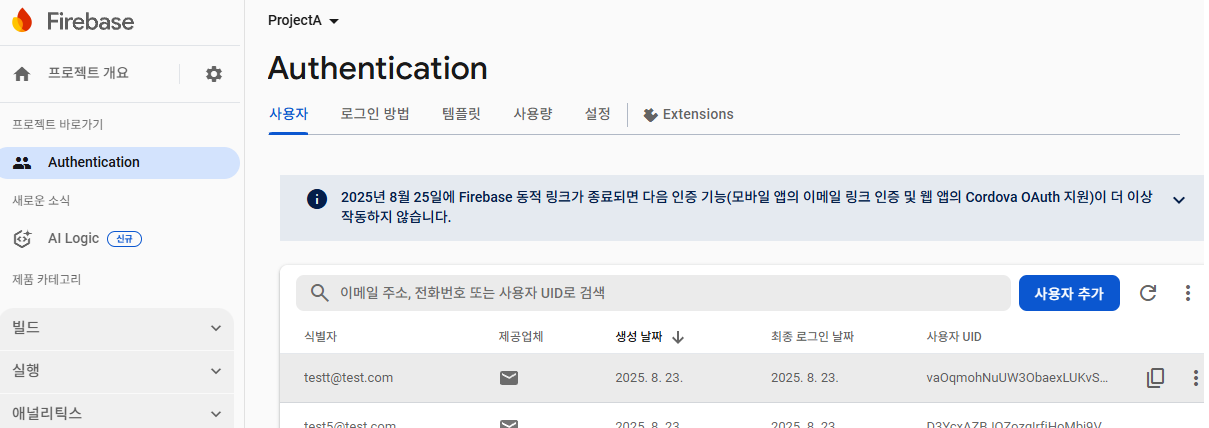 영상 후 Forebase의 Authentication > user 의 모습
감사합니다. 😁