안녕하세요.
이번 글에서는 Cinemachine를 이용한 작업을 작성하려고 합니다.
먼저 Virtual Camera를 사용하기 위해 Cinemachine을 설치해 주었습니다.
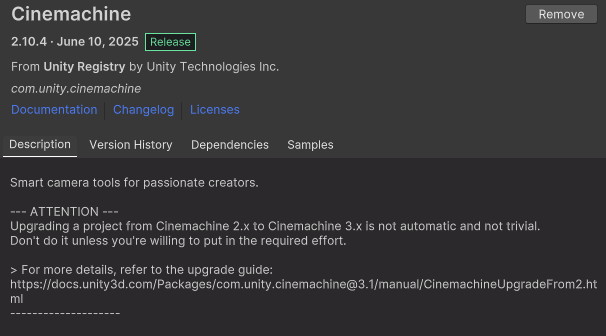
이후 Virtual Camera를 만들어 둔 뒤
인스펙터창에서 옵션을 수정해 주었습니다.
1. Body
Do Nothing
카메라 위치를 전혀 조정하지 않음 (스크립트나 다른 컴포넌트가 위치를 직접 조정할 때 사용)
Transposer
Follow 대상의 상대 좌표로 카메라를 배치 (예: 플레이어 뒤 5m, 위 3m)
Framing Transposer
화면 안에서 Follow 대상을 일정 비율로 유지하며 부드럽게 따라감
Hard Lock To Target
대상 위치에 딱 붙어서 따라다님 (부드러움 없음)
Framing Transposer를 설정해 주어 플레이어를 부드럽게 따라가게 해 주었습니다.
2. Anim
Do Nothing
카메라 회전은 건드리지 않음
Composer
Follow/Look At 대상을 화면 특정 영역에 유지하도록 회전
Group Composer
Look At 대상이 여러 개일 때 모두를 화면에 담기도록 조정
Hard Look At
대상 중심을 정확히 바라봄 (즉시 회전, 부드러움 없음)
회전은 현재 고정 상태를 생각하고 있기에 Do Nothing으로 설정해 주었습니다.
마지막으로 Follow에는 Player를 넣어 주었습니다.
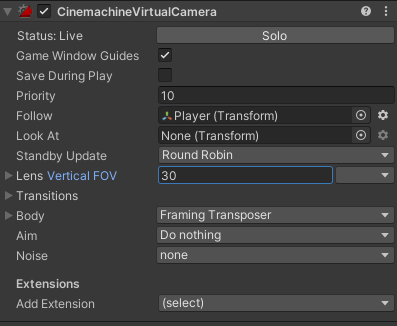
다음은 카메라 시점을 맞춰 주었습니다.
레퍼런스 이미지를 참고하며 작업을 했음에도.. 쉽사리 원하는 결과물이 나오지 않았습니다.
우선은 카메라의 Rotation을 (45, 45, 0)으로 두었지만.. 분위기 및 환경에 맞춰서 조금씩 조정을 해봐야겠습니다.
또한 한 가지 느꼈던 점이 생각보다 맵이 매우 커야 되겠다고 느꼈고, 하나의 멋진 연출을 위해 수많은 요소들이 조화롭게 이루어지며 상당한 시간이 들었을 것 같다고 생각했습니다.
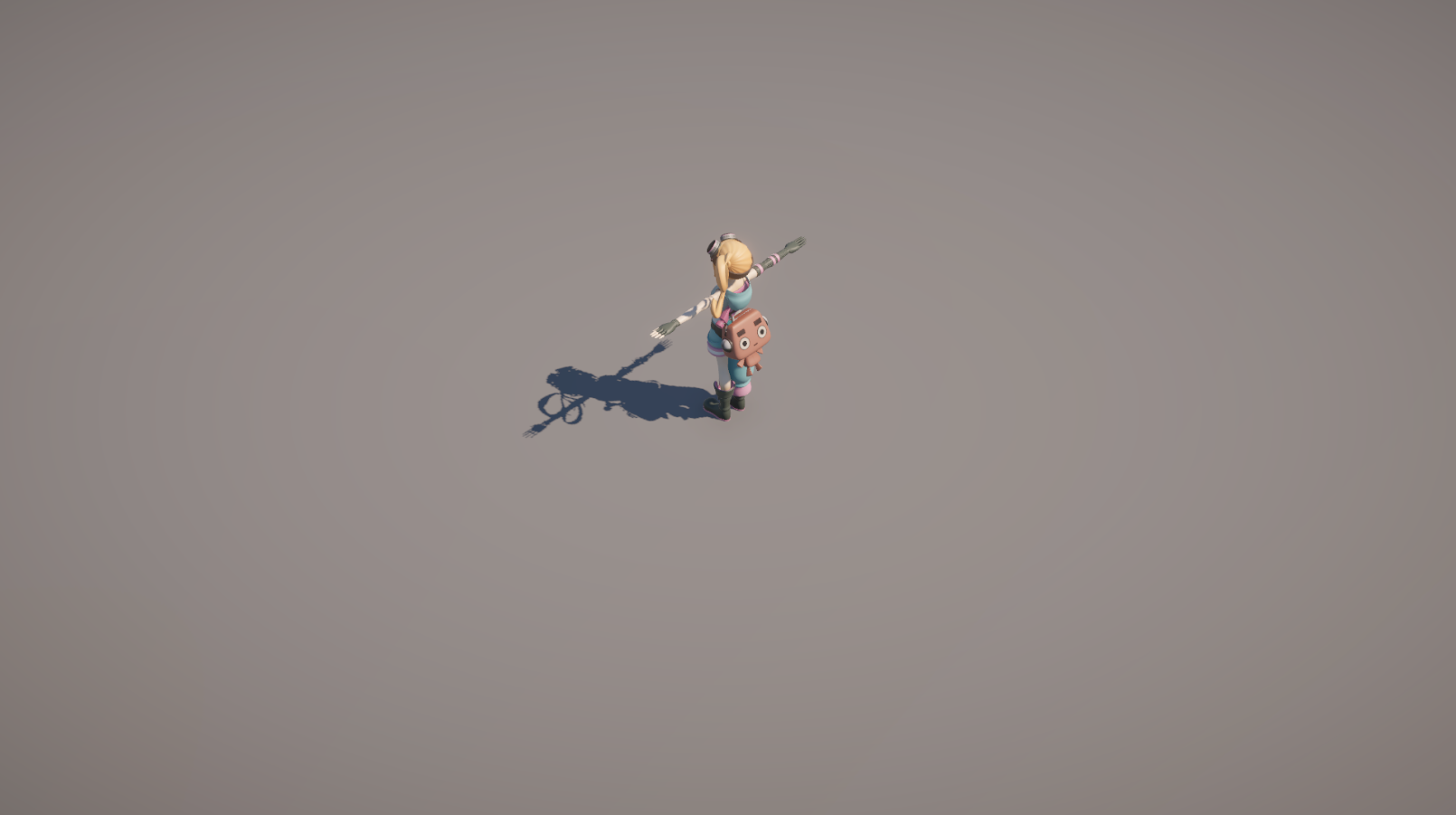 현재 시점
현재 시점
이걸로 Space key를 누르게 된다면 플레이어를 따라다니는 Virtual Camera로 전환.
Space Key를 떼게 된다면 자유자재로 움직이는 Main Camera로 전환을 할 것입니다.
스크립트를 보겠습니다.
using Cinemachine;
using UnityEngine;
public class CameraMovement : MonoBehaviour
{
[Header("Component")]
[SerializeField] private CinemachineVirtualCamera cinemachineCam;
[SerializeField] private Camera mainCam;
[Header("Stting Value")]
private bool isSpaceKey = false;
[SerializeField] private float moveSpeed = 10.0f;
[SerializeField] private float screenPaddingSize = 10.0f;
void Update()
{
IsKeySpaceActive();
MoveController();
}
private void IsKeySpaceActive()
{
if (Input.GetKeyDown(KeyCode.Space))
{
isSpaceKey = true;
cinemachineCam.gameObject.SetActive(true);
}
else if (Input.GetKeyUp(KeyCode.Space))
{
isSpaceKey = false;
cinemachineCam.gameObject.SetActive(false);
}
}
private void MoveController()
{
Vector3 forward = transform.forward;
forward.y = 0;
forward.Normalize();
Vector3 right = transform.right;
right.y = 0;
right.Normalize();
if (!isSpaceKey)
{
float mousePosX = Input.mousePosition.x;
float mousePosY = Input.mousePosition.y;
if (mousePosX < screenPaddingSize)
transform.position -= right * Time.deltaTime * moveSpeed;
if (mousePosX > Screen.width - screenPaddingSize)
transform.position += right * Time.deltaTime * moveSpeed;
if (mousePosY < screenPaddingSize)
transform.position -= forward * Time.deltaTime * moveSpeed;
if (mousePosY > Screen.height - screenPaddingSize)
transform.position += forward * Time.deltaTime * moveSpeed;
}
}
}
1. 사용할 컴포넌트입니다.
[SerializeField] private CinemachineVirtualCamera cinemachineCam;
[SerializeField] private Camera mainCam;
2. 키 눌림 여부, 카메라의 이동속도, 스크린의 패딩값입니다.
private bool isSpaceKey = false;
[SerializeField] private float moveSpeed = 10.0f;
[SerializeField] private float screenPaddingSize = 10.0f;
3. 스페이스 키가 눌렸을 때와 눌리지 않았을 때, Virtual Camera를 활성/비활성화해 주는 함수입니다.
또한 플래그도 같이 조정을 해 주었습니다.
private void IsKeySpaceActive()
{
if (Input.GetKeyDown(KeyCode.Space))
{
isSpaceKey = true;
cinemachineCam.gameObject.SetActive(true);
}
else if (Input.GetKeyUp(KeyCode.Space))
{
isSpaceKey = false;
cinemachineCam.gameObject.SetActive(false);
}
}
4. 스크린 영역을 마우스가 벗어나면 카메라의 이동을 담당할 함수입니다.
현재 메인 카메라의 Rotation 값 은 45, 45, 0입니다.
이에 맞게 2D로 보았을 때 x축과 y축만 움직이게 하기 위하여 forward와 right를 가져와 y = 0으로 제한을 해 주었습니다.
private void MoveController()
{
Vector3 forward = transform.forward;
forward.y = 0;
forward.Normalize();
Vector3 right = transform.right;
right.y = 0;
right.Normalize();
if (!isSpaceKey)
{
float mousePosX = Input.mousePosition.x;
float mousePosY = Input.mousePosition.y;
if (mousePosX < screenPaddingSize)
transform.position -= right * Time.deltaTime * moveSpeed;
if (mousePosX > Screen.width - screenPaddingSize)
transform.position += right * Time.deltaTime * moveSpeed;
if (mousePosY < screenPaddingSize)
transform.position -= forward * Time.deltaTime * moveSpeed;
if (mousePosY > Screen.height - screenPaddingSize)
transform.position += forward * Time.deltaTime * moveSpeed;
}
}
5. 마지막으로 이 함수들은 Update()에서 실행을 해 주었습니다.
void Update()
{
IsKeySpaceActive();
MoveController();
}
추가로 "CameraZoomController" 스크립트를 만들어 주었습니다.
using UnityEngine;
using Cinemachine;
public class CameraZoomController : MonoBehaviour
{
[SerializeField] private CinemachineVirtualCamera cinemachineCam;
[SerializeField] private Camera mainCam;
[SerializeField] private float zoomSpeed = 10f;
[SerializeField] private float minFOV = 20f;
[SerializeField] private float maxFOV = 80f;
private float currentFOV = 30f;
private void Update()
{
float scroll = Input.GetAxis("Mouse ScrollWheel");
if (scroll != 0f)
{
currentFOV -= scroll * zoomSpeed;
currentFOV = Mathf.Clamp(currentFOV, minFOV, maxFOV);
cinemachineCam.m_Lens.FieldOfView = currentFOV;
mainCam.fieldOfView = currentFOV;
}
}
}
1. 스크롤의 값 은 Input.GetAxis("Mouse ScrollWheel")로 가져와 주었습니다.
Input.GetAxis("Mouse ScrollWheel")
2. 줌 인 / 아웃은 인스펙터 옵션창에 있는 FOV 조절로 해 주었으며
Mathf.Clamp()를 활용하여 최소 및 최댓값을 정해 주었습니다.
currentFOV = Mathf.Clamp(currentFOV, minFOV, maxFOV);
3. 마지막으로 메인 카메라와 가상 카메라의 FOV 모두 적용이 되게 해 주었습니다.
cinemachineCam.m_Lens.FieldOfView = currentFOV;
mainCam.fieldOfView = currentFOV;
감사합니다.