https://github.com/Kimhyogyeom/ProjectA
GitHub - Kimhyogyeom/ProjectA: Unity-MOBA-Prototype
Unity-MOBA-Prototype. Contribute to Kimhyogyeom/ProjectA development by creating an account on GitHub.
github.com
https://github.com/Kimhyogyeom/ProjectB
GitHub - Kimhyogyeom/ProjectB: Drill-inspired Project
Drill-inspired Project. Contribute to Kimhyogyeom/ProjectB development by creating an account on GitHub.
github.com
안녕하세요.
먼저 오늘 작업 내용을 영상으로 먼저 살펴보겠습니다.
주요 작업은 다음과 같습니다.
1. 카드를 선택할 때 Effect 효과.
2. Ground의 점프 관련 작업.
3. Ground의 Hit 할 때 관련 작업.
4. Break Ground 파괴할 때 Get 코인 작업
5. Pause 버튼 관련 작업.
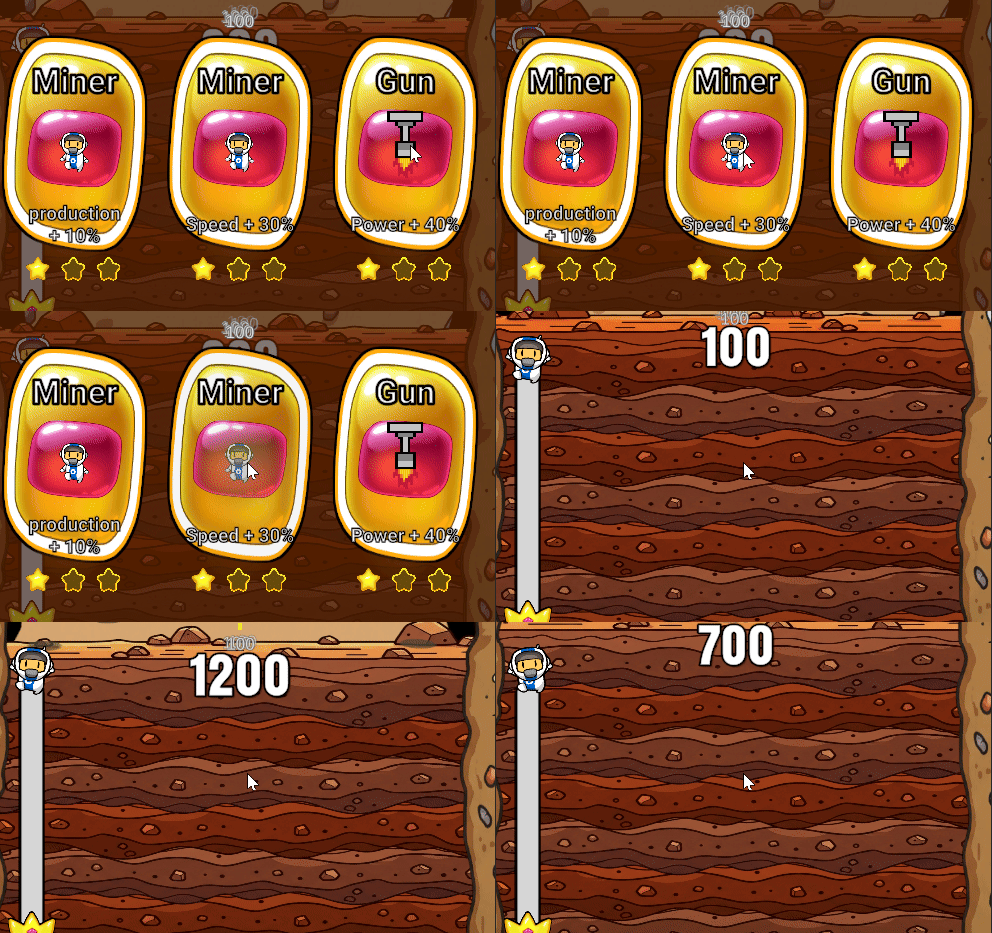
카드를 선택할 때 Effect 효과입니다.
/// <summary>
/// 카드 클릭하면 실행될 코루틴
/// </summary>
IEnumerator CardClickCorutine()
{
cardAnim.SetTrigger("Click");
yield return new WaitForSecondsRealtime(1.0f);
// 카드 레벨업
LevelUp();
// 카드 레벨업 효과 적용
ApplyEffect();
// 카드 UI 정리 및 레벨업 UI 숨김
transform.parent.GetComponent<SpawnRandomPrefabs>().ClearCards();
GameManager.Instance._levelManager.HideLevelUpUI();
}
이 부분은 현재 각 카드 하위에 오브젝트를 생성해 두고
애니메이션의 전이조건을 실행시켜 주는 방식으로 작업했는데요.
처음에는 카드를 클릭했을 때 해당 카드의 위치를 가져와
생성(Instantiate) 해주는 방식으로 작업을 했었습니다.
작업 방식은 동일하지만, 메모리적으로 불필요하다고 판단이 되었고
위와 같은 방식으로 수정을 했습니다.
다음은 Ground의 점프 관련 부분입니다.
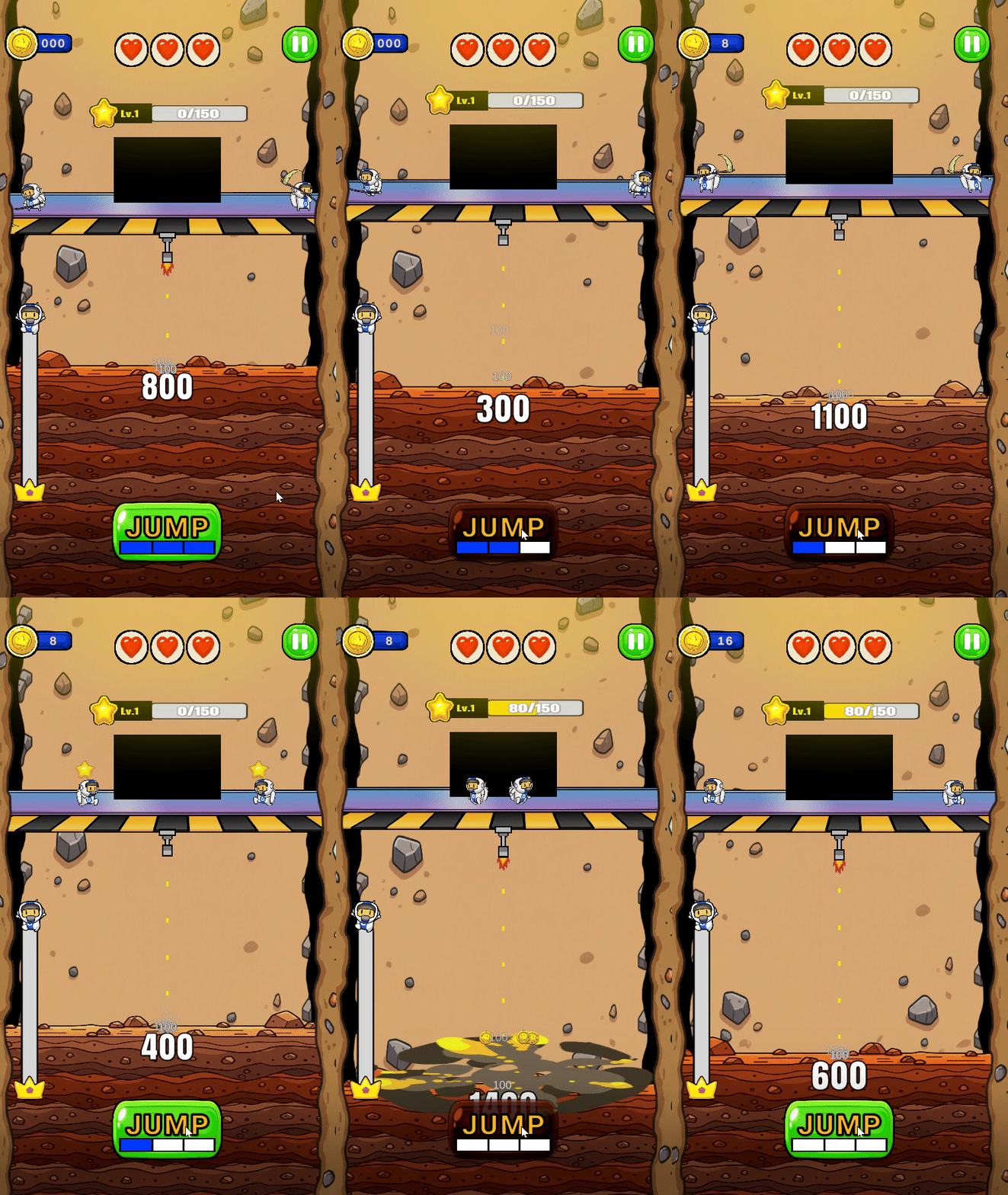
점프 관련 부분은 Groundjump 스크립트를 만들어서 작업했습니다.
using System.Collections;
using UnityEngine;
using UnityEngine.UI;
public class GroundJump : MonoBehaviour
{
[Header("Component")]
[SerializeField] private GroundHp _groundHp; // 그라운드 Hp 관련 컴포넌트
[Header("UI")]
[SerializeField] private Button _jumpButton; // 점프 버튼
[SerializeField] private Slider _jumpSlider; // 0 ~ 150 슬라이더
[SerializeField] private Image _jumpButtonImg; // 점프 버튼 이미지
[SerializeField] private GameObject _hitImagObje; // 히트될 때 켜질 오브젝트
[Header("Settings Jump")]
[SerializeField] private float _jumpHeight = 2f; // 점프 높이 (현재 위치에서 상대)
[SerializeField] private float _jumpSpeed = 5f; // 이동 속도
[SerializeField] private float _jumpCost = 50f; // 점프 시 감소량
private bool _isJumping = false; // 점프 중인지 판단
private float _jumpTargetY; // 점프 Y축 값
[Header("Settings Hit")]
[SerializeField] private float _hitJumpHeight = 2f; // Hit 점프 높이 (현재 위치에서 상대)
[SerializeField] private float _hitJumpSpeed = 5f; // Hit 이동 속도
private bool _isHiting = false; // 그라운드 to 파괴될 그라운드와 충돌
private float _hitJumpTargetY; // 점프 Y축 값
/// <summary>
/// AddListener Setting
/// </summary>
void Awake()
{
_jumpButton.onClick.AddListener(OnClickJumpButton);
}
/// <summary>
/// Y축 상승 로직
/// </summary>
void Update()
{
// 점프 판단 여부
if (_isJumping)
{
// 점프
transform.position += Vector3.up * _jumpSpeed * Time.deltaTime;
// 해당 위치 가면 점프 종료
if (transform.position.y >= _jumpTargetY)
{
// 점프 중 다시 끄기
_isJumping = false;
// 코루틴 실행
StartCoroutine(SuccessJumpCorutine());
}
}
// 히트 판단 여부
if (_isHiting)
{
// 점프
transform.position += Vector3.up * _hitJumpSpeed * Time.deltaTime;
// 해당 위치 가면 점프 종료
if (transform.position.y >= _hitJumpTargetY)
{
// Hit
_groundHp.TakeDamage();
// 히트 중 다시 끄기
_isHiting = false;
// 코루틴 실행
StartCoroutine(GroundHitCorutine());
}
}
}
/// <summary>
/// 점프에 성공 할 때 실행 될 코루틴
/// </summary>
IEnumerator SuccessJumpCorutine()
{
// 1초 대기 : 연속 점프 불가하게 하기 위함
yield return new WaitForSeconds(1f);
_jumpButtonImg.color = Color.white;
// 상호작용 키기
_jumpButton.interactable = true;
}
/// <summary>
/// 히트 됐을때 실행할 코루틴
/// </summary>
IEnumerator GroundHitCorutine()
{
_hitImagObje.SetActive(true);
yield return new WaitForSeconds(1.2f);
_hitImagObje.SetActive(false);
}
/// <summary>
/// 점프 버튼 클릭 시 호출 될 함수
/// </summary>
private void OnClickJumpButton()
{
// 슬라이더 잔량 체크
if (!_isJumping && _jumpSlider.value >= _jumpCost)
{
_isJumping = true;
_jumpTargetY = transform.position.y + _jumpHeight;
_jumpButtonImg.color = Color.red;
// 상호작용 끄기
_jumpButton.interactable = false;
// 점프 비용 차감
_jumpSlider.value -= _jumpCost;
}
}
/// <summary>
/// 그라운드가 파괴될 그라운드 충돌 시 호출
/// </summary>
private void GroundToBreakGroundTrigger()
{
_isHiting = true;
_hitJumpTargetY = transform.position.y + _hitJumpHeight;
}
/// <summary>
/// 충돌 트리거 (Enter)
/// </summary>
void OnTriggerEnter2D(Collider2D collision)
{
if (collision.CompareTag("BreakGround") && gameObject == this.gameObject)
{
GroundToBreakGroundTrigger();
}
}
}
주요 로직을 보면 Update()에서 점프 중인지, 공격 중인지 판단을 합니다.
void Update()
{
// 점프 판단 여부
if (_isJumping)
{
// 점프
transform.position += Vector3.up * _jumpSpeed * Time.deltaTime;
// 해당 위치 가면 점프 종료
if (transform.position.y >= _jumpTargetY)
{
// 점프 중 다시 끄기
_isJumping = false;
// 코루틴 실행
StartCoroutine(SuccessJumpCorutine());
}
}
// 히트 판단 여부
if (_isHiting)
{
// 점프
transform.position += Vector3.up * _hitJumpSpeed * Time.deltaTime;
// 해당 위치 가면 점프 종료
if (transform.position.y >= _hitJumpTargetY)
{
// Hit
_groundHp.TakeDamage();
// 히트 중 다시 끄기
_isHiting = false;
// 코루틴 실행
StartCoroutine(GroundHitCorutine());
}
}
}
각 판단이 되면 점프할 방향과 스피드를 지정해 주고,
StartCorutine()을 활용해 코루틴을 실행시켜 줍니다.
먼저 점프가 되면 실행될 SuccessJumoCirutine()입니다.
이 부분에서는 연속 점프가 불가능하도록 Button의 interactable을 제어한 것을 풀어주었고
시각적인 효과로 컬러도 원래대로 되돌려주었습니다.
IEnumerator SuccessJumpCorutine()
{
// 1초 대기 : 연속 점프 불가하게 하기 위함
yield return new WaitForSeconds(1f);
_jumpButtonImg.color = Color.white;
// 상호작용 키기
_jumpButton.interactable = true;
}
그라운드가 Hit = BreakGround와 충돌이 일어났을 때 실행되는 코루틴입니다.
IEnumerator GroundHitCorutine()
{
_hitImagObje.SetActive(true);
yield return new WaitForSeconds(1.2f);
_hitImagObje.SetActive(false);
}
이 부분에서는 충돌이 일어났음을 경고로 알리는
애니메이션이 담긴 오브젝트를 활성/비활성화시켜주는 모습입니다.
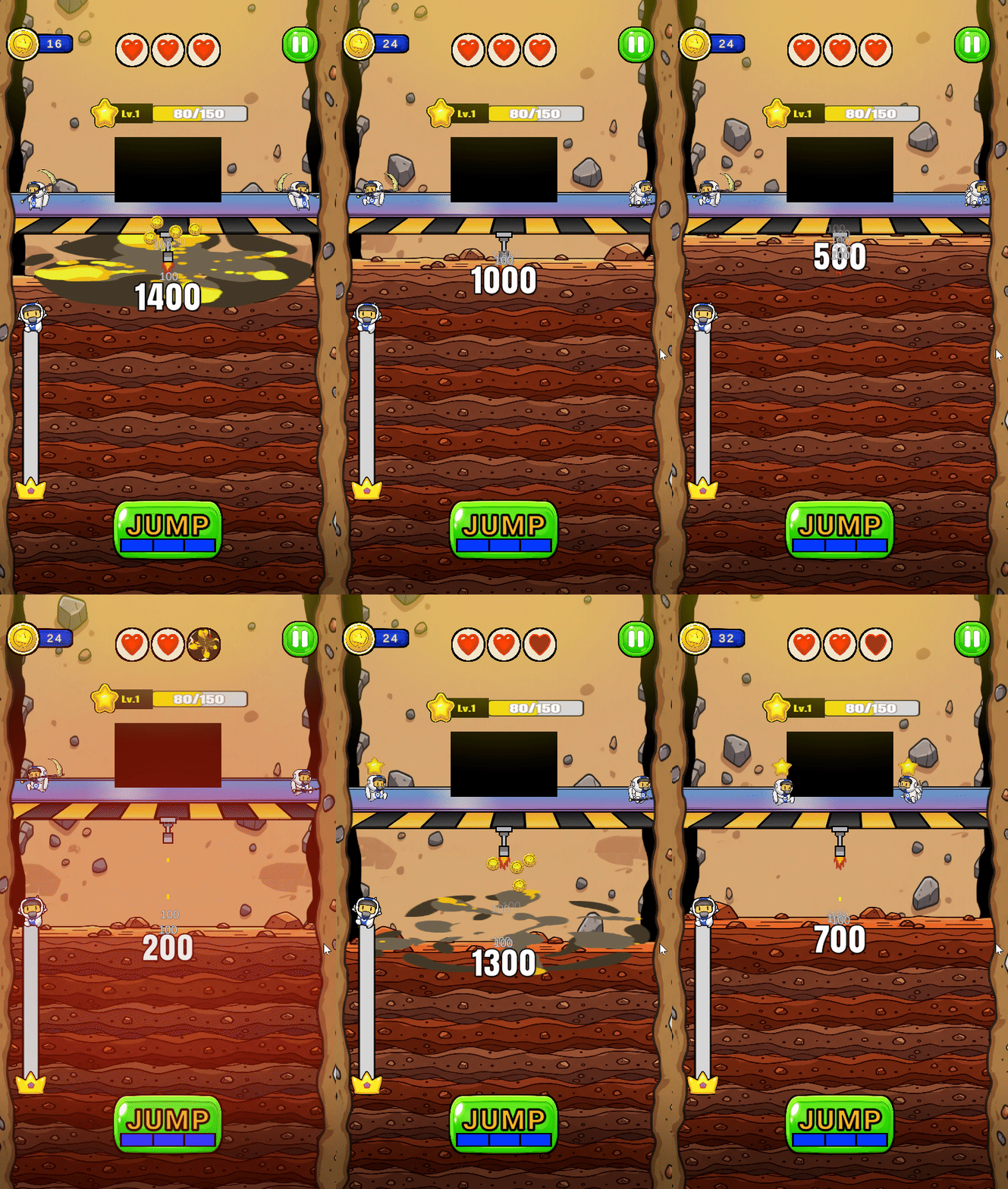
점프 버튼을 눌렀을 때 실행되는 함수입니다.
Update()에서 감지하는 _isJumping을 true로 변경시켜 줍니다.
private void OnClickJumpButton()
{
// 슬라이더 잔량 체크
if (!_isJumping && _jumpSlider.value >= _jumpCost)
{
_isJumping = true;
_jumpTargetY = transform.position.y + _jumpHeight;
_jumpButtonImg.color = Color.red;
// 상호작용 끄기
_jumpButton.interactable = false;
// 점프 비용 차감
_jumpSlider.value -= _jumpCost;
}
}
충돌이 일어났을 때는 GroundToBreakGroundTrigger() 함수가 실행됩니다.
여기서 gameObject == this.gameObject를 해준 이유는
Ground의 하위에 다른 태그와 콜라이더를 가진 오브젝트가 있는데
이 오브젝트도 충돌 판정이 일어나서 막아 주기 위함입니다.
void OnTriggerEnter2D(Collider2D collision)
{
if (collision.CompareTag("BreakGround") && gameObject == this.gameObject)
{
GroundToBreakGroundTrigger();
}
}
마찬가지로 GroundToBreakGroundTrigger()가 실행되면
Update()에서 감지하는 _isHiting을 true로 변경시켜 주었습니다.
private void GroundToBreakGroundTrigger()
{
_isHiting = true;
_hitJumpTargetY = transform.position.y + _hitJumpHeight;
}
다음은 Ground가 BreakGround와 충돌 후 Hp가 소모되는 부분입니다.
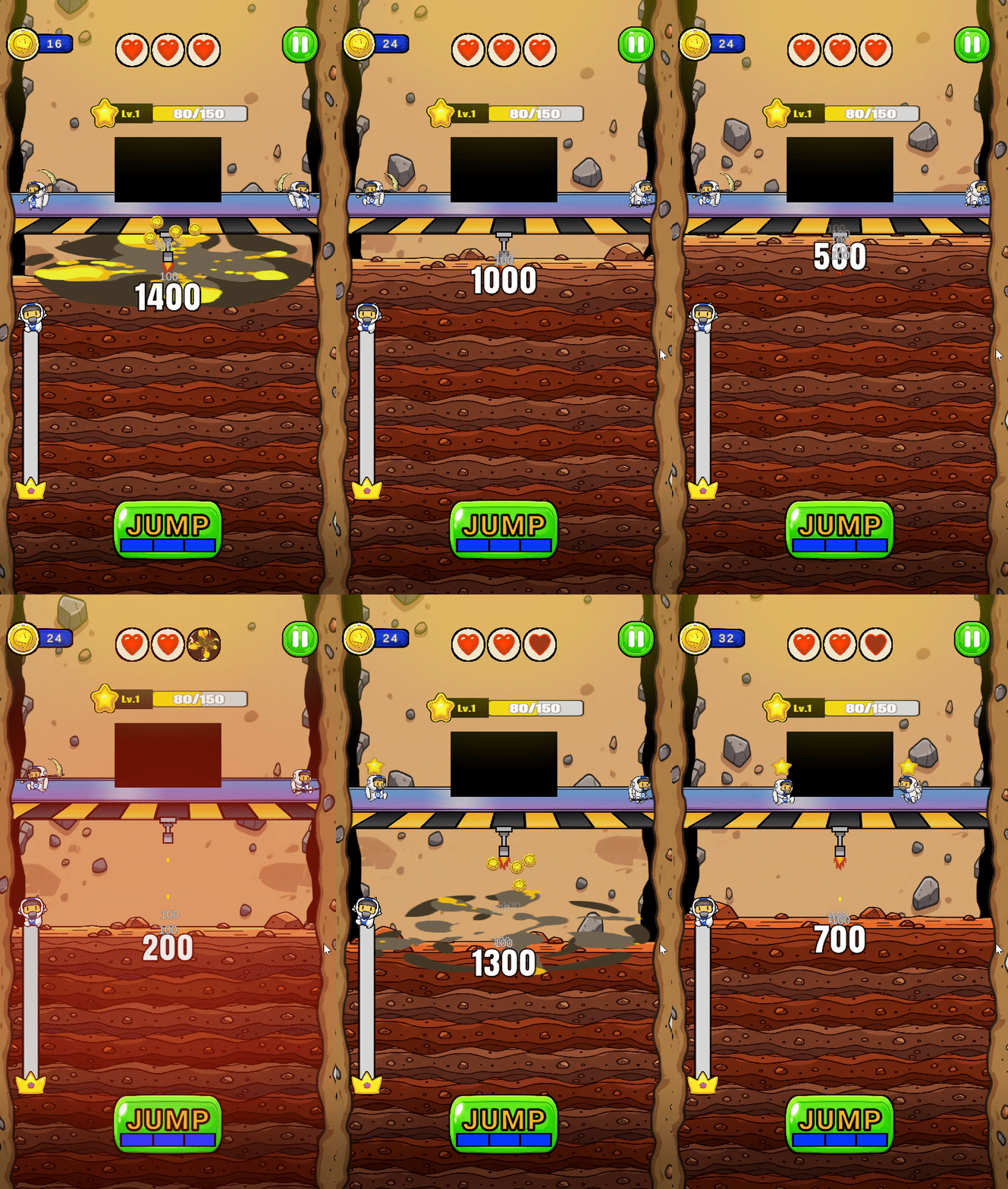
Hp가 감지되는 부분은 GroundHp 스크립트를 만들어서 작업했습니다.
using System.Collections;
using UnityEngine;
using UnityEngine.UI;
public class GroundHp : MonoBehaviour
{
[Header("HP Settings")]
[SerializeField] private Image[] _hpImages; // 3개의 이미지
[SerializeField] private GameObject[] _hpEffectImage; // 3개의 파괴됐을 때 이미지
[SerializeField] private Sprite _spriteA; // 기본 HP
[SerializeField] private Sprite _spriteB; // 감소 Hp
private int _currentHp = 3; // 총 HP
/// <summary>
/// HP 감소 함수
/// </summary>
public void TakeDamage()
{
if (_currentHp <= 0) return;
_currentHp--; // HP 1 감소
int damagedIndex = _currentHp; // 이번에 감소한 HP index
// Hp가 0보다 같거나 클때
if (damagedIndex >= 0)
{
// Sprite 변경
// Boom Effect 활성화
// 코루틴 실행
_hpImages[damagedIndex].sprite = _spriteB;
_hpEffectImage[damagedIndex].SetActive(true);
StartCoroutine(HpBoomCorutine(_hpEffectImage[damagedIndex]));
}
if (_currentHp <= 0)
{
Debug.Log("Die");
// 로직 작성 예정 Start / End 작업할 때 같이
}
}
/// <summary>
/// Hp 감소시 실행될 Boom Effect 코루틴
/// </summary>
IEnumerator HpBoomCorutine(GameObject boomIObject)
{
yield return new WaitForSeconds(1.0f);
boomIObject.SetActive(false);
}
// // Test : Del
// void Update()
// {
// if (Input.GetKeyDown(KeyCode.Space))
// {
// TakeDamage();
// }
// }
}
충돌 시 TakeDamage() 함수가 실행되며
Hp가 0보다 같거나 크다면
총 3장의 하트 이미지 중 해당 _currentHp에 맞게 sprite를 지정해 주었습니다.
또한 hp가 0보다 작거나 크면 UI 화면이 팝업 되며 로비로 돌아가는 작업을 할 예정인데요
아직 로비 작업이 되지 않아 주석 처리만 해놓은 상태입니다.
public void TakeDamage()
{
if (_currentHp <= 0) return;
_currentHp--; // HP 1 감소
int damagedIndex = _currentHp; // 이번에 감소한 HP index
// Hp가 0보다 같거나 클때
if (damagedIndex >= 0)
{
// Sprite 변경
// Boom Effect 활성화
// 코루틴 실행
_hpImages[damagedIndex].sprite = _spriteB;
_hpEffectImage[damagedIndex].SetActive(true);
StartCoroutine(HpBoomCorutine(_hpEffectImage[damagedIndex]));
}
if (_currentHp <= 0)
{
Debug.Log("Die");
// 로직 작성 예정 Start / End 작업할 때 같이
}
}

또한 코드를 자세히 보면 _hpEffectImage [damagedIndex]를 활성화시켜주는 로직이 있는데요
IEnumerator HpBoomCorutine(GameObject boomIObject)
{
yield return new WaitForSeconds(1.0f);
boomIObject.SetActive(false);
}
애니메이션이 담긴 오브젝트를 활성화 한 뒤 코루틴을 사용해
시간 지연 후 비활성화 시켜주었습니다.

다음은 그라운드를 파괴할 때 실행되는 CoinController 스크립트입니다.
해당 코인들은 breakGround 오브젝트 하위에 위치시켜 주었습니다.
using UnityEngine;
using System.Collections;
public class CoinController : MonoBehaviour
{
[Header("Settings")]
[SerializeField] private float _riseHeight = 1f; // 위로 뜨는 높이
[SerializeField] private float _duration = 0.5f; // 올라가는 시간
[SerializeField] private Transform _breakGround; // 부모 오브젝트(파괴될 그라운드)
private Vector3 _startPos;
private Vector3 _targetPos;
void OnEnable()
{
// 시작 위치
_startPos = _breakGround.position + new Vector3(0f, -0.2f, 0f);
// X축 랜덤
float randomX = Random.Range(-0.5f, 0.5f);
// 목표 위치 계산
_targetPos = _startPos + new Vector3(randomX, _riseHeight, 0f);
// 코루틴 실행
StartCoroutine(PopCoroutine());
}
private IEnumerator PopCoroutine()
{
float timer = 0f;
float ySpeed = Random.Range(1f, 2f); // y축 상승 속도 랜덤
float xRandomPos = Random.Range(-0.5f, 0.5f);
// 시작 위치 세팅
transform.position = _startPos + new Vector3(xRandomPos, 0f, 0f);
while (timer < _duration)
{
// 목표 y까지 이동
transform.position += Vector3.up * ySpeed * Time.deltaTime;
timer += Time.deltaTime;
yield return null;
}
GameManager.Instance._coinManager.GetCoin();
gameObject.SetActive(false);
}
}
OnEnable()를 사용해 오브젝트가 활성화되면
StartCorutine()으로 코루틴을 실행시켜 주었으며
매번 달라지는 초기 위치에 맞게 _StartPos를 정해주었습니다.
void OnEnable()
{
// 시작 위치
_startPos = _breakGround.position + new Vector3(0f, -0.2f, 0f);
// X축 랜덤
float randomX = Random.Range(-0.5f, 0.5f);
// 목표 위치 계산
_targetPos = _startPos + new Vector3(randomX, _riseHeight, 0f);
// 코루틴 실행
StartCoroutine(PopCoroutine());
}
코루틴에서는 올라가는 속도 Y와, X의 포지션을 랜덤으로 정해주었고,
While()을 사용해 목표 위치까지 이동시켜 주었습니다.
private IEnumerator PopCoroutine()
{
float timer = 0f;
float ySpeed = Random.Range(1f, 2f); // y축 상승 속도 랜덤
float xRandomPos = Random.Range(-0.5f, 0.5f);
// 시작 위치 세팅
transform.position = _startPos + new Vector3(xRandomPos, 0f, 0f);
while (timer < _duration)
{
// 목표 y까지 이동
transform.position += Vector3.up * ySpeed * Time.deltaTime;
timer += Time.deltaTime;
yield return null;
}
GameManager.Instance._coinManager.GetCoin();
gameObject.SetActive(false);
}
마지막으로 일시정지 버튼 관련 작업입니다.
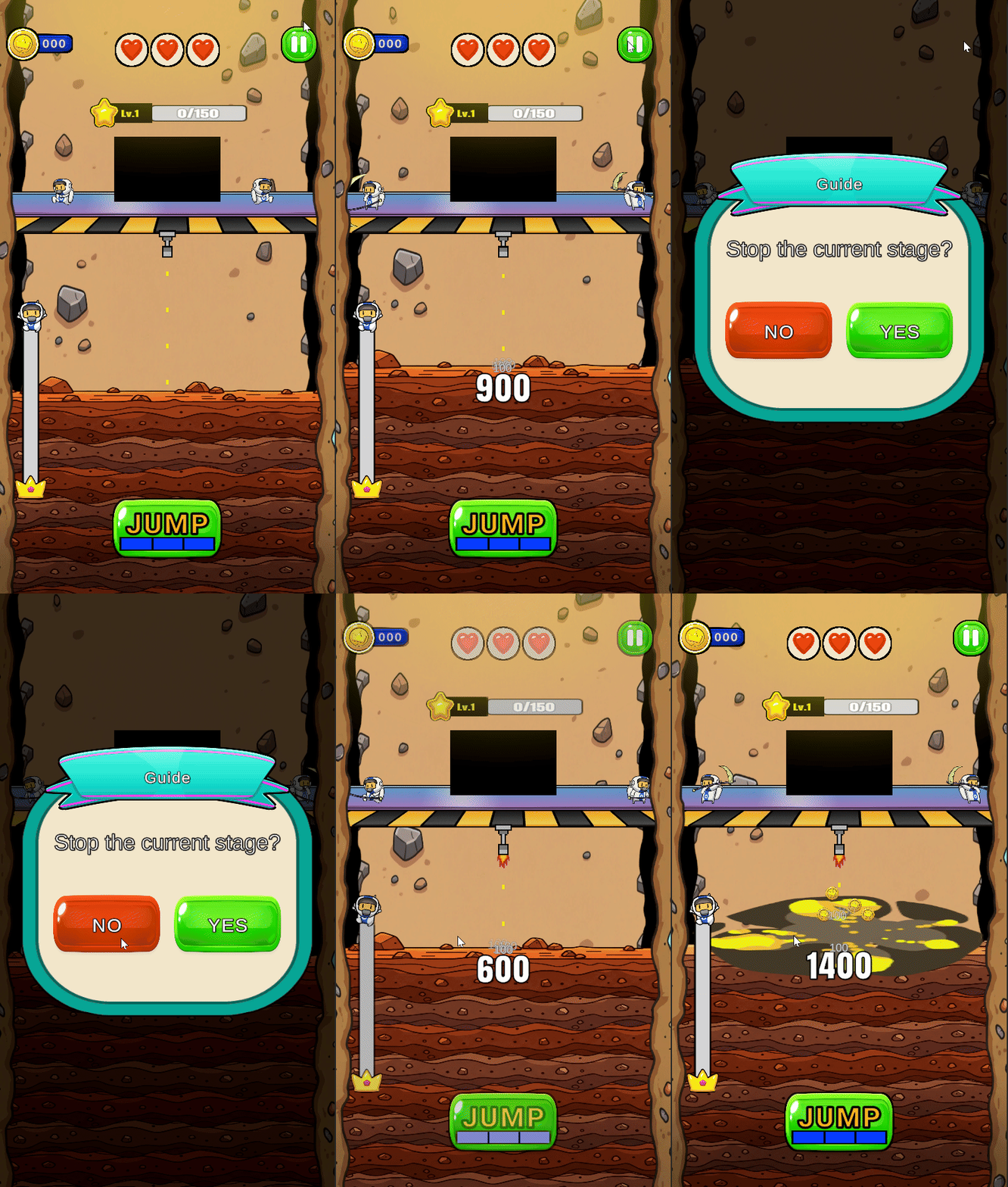
PauseController 스크립트입니다.
using System.Collections;
using UnityEngine;
using UnityEngine.UI;
public class PauseController : MonoBehaviour
{
[SerializeField] private Button _pauseButton;
[SerializeField] private Button _noButton;
[SerializeField] private CanvasGroup[] _canvasImages; // 여러 UI
[SerializeField] private GameObject _pauseObj;
[SerializeField] private float _fadeDuration = 1.0f; // 서서히 사라지는 시간
void Awake()
{
_pauseButton.onClick.AddListener(OnClickPauseButton);
_noButton.onClick.AddListener(OnClickNoButton);
}
public void OnClickPauseButton()
{
StartCoroutine(CanvasUIHideCoroutine());
}
public void OnClickNoButton()
{
StartCoroutine(CanvasUIShowCoroutine());
}
IEnumerator CanvasUIHideCoroutine()
{
Time.timeScale = 0f;
float time = 0f;
while (time < _fadeDuration)
{
time += Time.unscaledDeltaTime;
float alpha = Mathf.Lerp(1f, 0f, time / _fadeDuration);
// 모든 CanvasGroup에 동일하게 적용
foreach (var canvas in _canvasImages)
{
if (canvas != null)
{
canvas.alpha = alpha;
}
}
yield return null;
}
// 완전히 사라지면 비활성화 패널 띄움
_pauseObj.SetActive(true);
}
IEnumerator CanvasUIShowCoroutine()
{
_pauseObj.SetActive(false);
Time.timeScale = 1;
float time = 0f;
while (time < _fadeDuration)
{
time += Time.unscaledDeltaTime;
float alpha = Mathf.Lerp(0f, 1f, time / _fadeDuration);
// 모든 CanvasGroup에 동일하게 적용
foreach (var canvas in _canvasImages)
{
if (canvas != null)
{
canvas.alpha = alpha;
}
}
yield return null;
}
}
}
Pause 버튼 : OnClickPauseButton()
No 버튼 : OnClickNoButton()
public void OnClickPauseButton()
{
StartCoroutine(CanvasUIHideCoroutine());
}
public void OnClickNoButton()
{
StartCoroutine(CanvasUIShowCoroutine());
}
전체 UI 요소를 Show/Hide 해주는 코루틴입니다.
주요 부분은 time을 지정해 줄 때
Time.DeltaTime이 아닌, Time.unscaledDeltaTime으로 작성하여
Time.timeScale에 영향을 받지 않고 While()이 돌아가게 작성해 주었습니다.
또한 InGame 화면에 있는 UI-Image 들의 Alpha값을 관리하기 위해
각 Panel에 컴포넌트 CanvasGroup를 추가해 주었고
CanvasGroup의 Alpha값을 제어해 주었습니다.
Mathf.Lerp의 (시작 값, 끝 값, 0~1 사이 비율)
IEnumerator CanvasUIHideCoroutine()
{
Time.timeScale = 0f;
float time = 0f;
while (time < _fadeDuration)
{
time += Time.unscaledDeltaTime;
float alpha = Mathf.Lerp(1f, 0f, time / _fadeDuration);
// 모든 CanvasGroup에 동일하게 적용
foreach (var canvas in _canvasImages)
{
if (canvas != null)
{
canvas.alpha = alpha;
}
}
yield return null;
}
// 완전히 사라지면 비활성화 패널 띄움
_pauseObj.SetActive(true);
}
IEnumerator CanvasUIShowCoroutine()
{
_pauseObj.SetActive(false);
Time.timeScale = 1;
float time = 0f;
while (time < _fadeDuration)
{
time += Time.unscaledDeltaTime;
float alpha = Mathf.Lerp(0f, 1f, time / _fadeDuration);
// 모든 CanvasGroup에 동일하게 적용
foreach (var canvas in _canvasImages)
{
if (canvas != null)
{
canvas.alpha = alpha;
}
}
yield return null;
}
}
무더위가 빨리 지나갔으면 좋겠습니다.
이 더위는 익숙해 질 법도 한데말이죠.. 😂
다들 더위 조심하시고 즐거운 월요일이 되시길 바랍니다.
감사합니다.